Release notes 7.18
Below you'll find a brief overview of new functionality implemented in Axiell Designer 7.18, including links to more information. We strongly recommend always using the latest version of Designer.
The Axiell software which needs to be updated to the latest version once new Designer settings have been applied (only if you have a license for that software of course) is the following: Collections, AdMove server, Workflow client, Ingest, WebAPI, SDK, AnalyzeData, Migration, ConvertInternalLinks, IndexCheck, InternalLinkCheck, LinkRefCheck, RemoveLanguageFromData, RemoveTagsFromData, DBtool and ValidateDatabase.
 Backwards compatibility
Using new (Collections-only) Designer settings in your application and database definitions will always break compatibility with older versions of Designer and Collections and other Axiell software* using the same BaseAPI, although removing those new settings will often restore that compatibility under the condition that the SQL table structures haven't changed because of those settings: if the SQL table structures have changed too, then a SQL database backup from before that change is required as well to go back to the previous state. The Designer release notes always note the compatible version of Designer and Collections, but this applies to below list of other Axiell software too. For a full list of compatibility issues through the different versions of Designer and Collections, see the Axiell Designer compatibility topic. The Axiell software which needs to be updated to the latest version once new Designer settings have been applied (only if you have a license for that software of course) is the following: Collections, AdMove server, Workflow client, Ingest, WebAPI, SDK, AnalyzeData, Migration, ConvertInternalLinks, IndexCheck, InternalLinkCheck, LinkRefCheck, RemoveLanguageFromData, RemoveTagsFromData, DBtool and ValidateDatabase.
Designer versions which shouldn't be used
Designer versions older than 7.7.1.316 (at least down to some versions of 7.6) and specific version 7.8.0.3855 should not be used: changing the database server name in a specific .inf would empy all translations from all enumerative field definitions in that .inf. This would not affect your existing data, but enumerative fields (drop-down lists) in Collections would no longer show user-friendly values. In Designer 7.8.0.3859 this bug was fixed again.
Version 7.6.19234.1 (as recommended for Adlib for Windows users) doesn't have the bug, so it can be used safely by Adlib users.
If enumerative field definitions still have their neutral values while they have lost their translations due to this bug, all these translations should be copied back to the relevant field definitions manually, using a backup of your application or an appropriate model application if you do not have a backup of your own application. Please contact our helpdesk for further assistance.
New options and functions for Axiell Collections make further use of Adlib for Windows impossible
New settings in Axiell Designer pertain only to applications run within an Axiell Collections environment. If such new settings are applied, then the resulting application can no longer (reliably) be opened in Adlib for Windows. Since development of Adlib for Windows has ceased quite a long time ago, these new options are not supported by Adlib for Windows. Even if Adlib would ignore the relevant option, you could no longer reliably work in Adlib too, so altered applications using Collections-only functionality should never be opened in Adlib again.
Import.exe and Designer import job editor/manager deprecated for running import jobs: use importtool.exe instead
Import.exe and thus the Designer import job editor/manager (because Designer effectively calls import.exe when an import job is being run) need to be able to read the .inf of the target database for the import. This is only possible if this software recognizes all options and object properties that might have been set in the relevant .inf. If an option or property isn't recognized, running the import job returns an error 172 (system file processed with newer version of software than version with which it was called). With the late 2022 introduction of importtool.exe (using newer technology) as an alternative for import.exe and the Designer import function, development on the latter import functionality has ceased. This has the consequence that when you use import.exe or the Designer import job editor/manager to run an import job for an .inf that has new options (say those that were introduced from Designer 7.6 and up), there's a chance you'll get an error 172 because import.exe has no support for the new property. In that case you'll need to start using importtool.exe to run your import jobs from now on. However, as long as you don't get the error, you can keep running your import jobs as you always did and you can even use the latest version of Designer for any changes to your application. Just keep in mind that you may activate a new option or property sooner or later, after which import.exe or an import with Designer will throw the mentioned error and you'll still have to move to importtool.exe.
Import jobs still have to be created in Designer (preferably use the latest version), so that doesn't change. Read more about importtool.exehere.
Contents
Linked field mapping display improved
Database fields window improvements
Field group name check added for indexed link meta data reference fields
2026-04-03: Release notes Axiell Designer 7.18
The following bug fixes and new functionality for Designer 7.18 and related tools have been implemented:
|
Bug report no. |
Short problem description |
| AX-667 | When updating a SQL database with some new application settings, like the Data source name for the associated SQL database, Designer returned confusing error messages on already existing tables. Sometimes these tables did not exist yet, sometimes they did, but in all cases these were tables that had to be newly created. |
| AX-658 | ImportTool would generate a The timeout period elapsed error prior to obtaining a connection from the application pool. |
| AX-657 | The Update SQL tables option reported errors on duplicate objects and did not create all required SQL tables. |
| AX-510 | The Update SQL tables option re-created obsolete SQL meta data linking tables. When using Meta data enabled reversely or internally linked fields (where meta data is stored in a separate SQL table), it is now mandatory to always use the Indexed link indexing structure too, because the so-called triple indexes stored in SQL tables ending with linkTable that were used for non-indexed link linked fields with meta data before, are not supported any more by Collections 3.0 and up. |
| AX-188 | The Application browser didn't save any modifications to a pasted text unless you saved the file with the pasted text first, before modifying the value and then saving it again. |
Linked field mapping tab display improved
To make better use of available space on the Linked field mapping properties tab of a selected linked field in the Application browser and to provide more information about which fields you are actually mapping, new properties columns have been added for field Tag, Length (the field length of two mapped fields should be equal, although the destination field is allowed to be larger), Type (the type of two mapped fields should be identical), Group (the destination fields should be part of one and the same field group while the source fields should either be part of one and the same field group or not be part of any field group) and Multilingual (either both fields in a mapping should be multilingual or neither should be). You can't edit these properties here, so that's why they're greyed out.

You can resize the three mapping boxes on this tab vertically, if you want. Move the mouse cursor underneath one of the boxes until it turns into a double vertical arrow. Then click and drag the splitter up or down while keeping the mouse button pressed down.
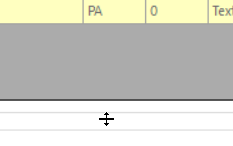
Also, clicking the Add button will now automatically scroll the list down to the newly added row at the bottom of the current mapping, if the list is taller than the height of the box.
Database fields window improvements
The Database fields window, which is used in several places in Designer to select a field, has seen some improvements too.
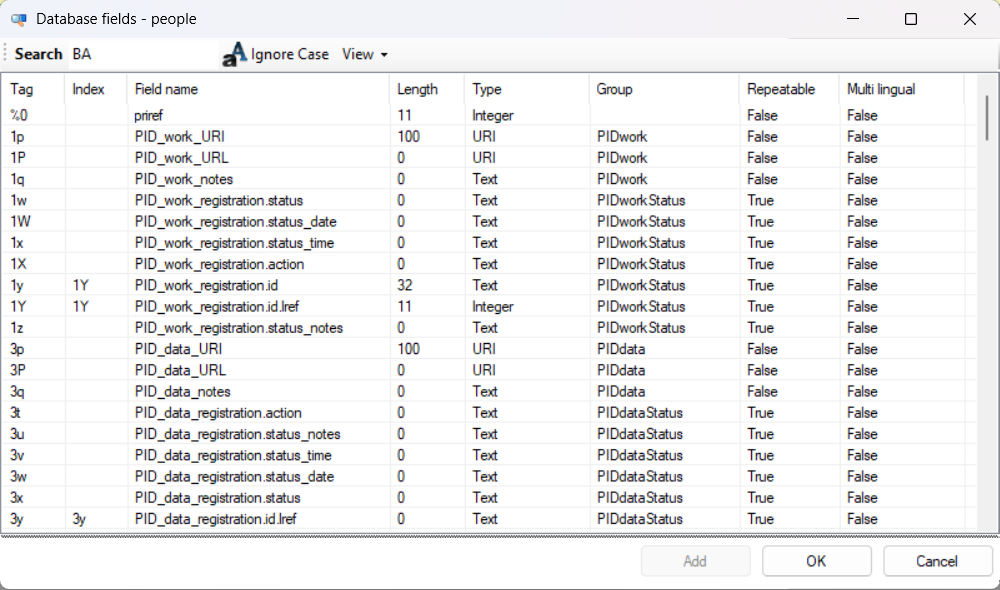
The Group and Multilingual columns were added and you can sort on them and on all existing columns too by clicking the header of the relevant column one or more times. An earlier error when trying to sort on the Type column was fixed in the process.
Also, you can now use the Esc button on your keyboard to close the window quickly without making a selection.
Highlighting of label / entry field pairs
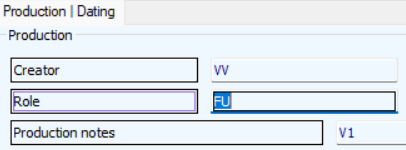
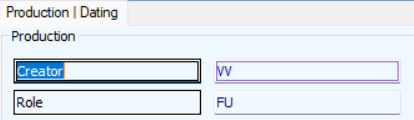
When you now select a label or an entry field on a screen, the associated entry field or label will get a purple highlight. This makes it easier to find out which label belongs to which entry field.
Undo/Redo functionality (Ctrl+Z / Ctrl+Y) added
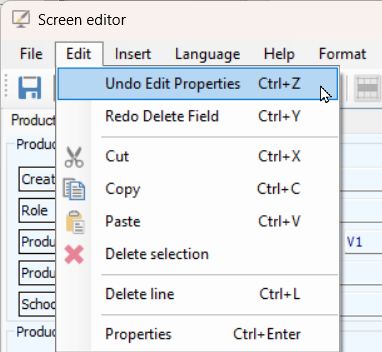
When you've made changes, like deletions, additions or other edit and you'd like to make then undone, you can now use the Ctrl+Z shortcut, similarly to how you can in other software, even after saving a file. Use it repeatedly to undo multiple actions.
If you've undone certain actions you can redo them still by using Ctrl+Y.
The matching options in the Edit menu even indicate the type of action you are about to undo or redo, e.g. an edit, delete or create.
Reload from Disk functionality added
When you made many changes but they didn't work out and didn't save the edited screen file yet, you can now reload the file from disk to go back to the earlier saved version without having to undo many individual changes. You will still have to confirm the reload because you'll lose all changes you've made after your last save. You can activate the function via the File > Reload from Disk menu or by using the Ctrl+R shortcut.
Moving a box and its contents
To move a box and the fields and labels within it: press the Shift key, then click an empty spot in the relevant box and keep the Shift key pressed down while dragging the box to a different location.
Range selection for copying, deleting and moving
You can now select multiple screen elements, in order to copy, move* or delete them al at once.
To select multiple individual elements keep Ctrl pressed down while clicking the different elements. Note that deleting or cutting a selected label which is associated with an entry field only deletes the label while if you delete a selected entry field, its label will be deleted too. For copying, it doesn't matter if you have only selected the label or the entry field: both will be copied. Also note that de Delete key on your keyboard, deletes the tag/text in a currently selected entry field or label, while using the right-click pop-up menu Delete option deletes the entry field and/or label.
To select a range of fields and labels at once, first click the top or bottom label or field, press Shift and click the label or field at the opposite of the range. If you'd like to include the box around the fields and labels too, then first select the bottom field, press Ctrl+Shift and click the upper box edge.
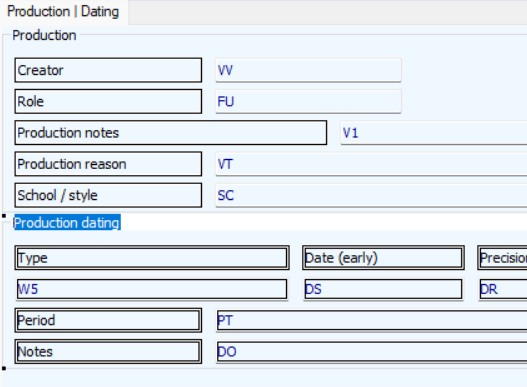
Right-click the selection and choose your action from the pop-up menu. If you copied the selection, right-click the exact location in the screen (an empty spot on the screen or in a box) where you'd like to paste it and select Paste from the pop-up menu. The layout/organisation of the copied elements will remain intact. (You can also use the Edit > Paste menu or Ctrl+V to paste a copied selection, but you have less control over the paste location, so pasting via the right-click pop-up menu is recommended.)
* To move a box and the fields and labels within it, doing that via a multi-selection is not recommended: the best way to move a box and its contents is to press the Shift key, then click an empty spot in the relevant box and keep the Shift key pressed down while dragging the box to a different location.
Moving a field out of its box
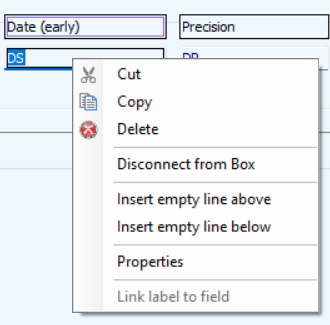
Previously, you couldn't just drag a field or label out of a box: once inside a box it was sort of locked inside it. There was a work-around, but to make it easier to move elements from within a box to somewhere outside it, a Disconnect from Box option has now been added to the right-click pop-up menu for elements which can reside inside a box. You can apply it to a multi-selection of elements too and if you want to disconnect an entry field and its label you'll have to select them both explicitly.
Inserting empty lines above and below
Previously you could only insert an empty line above the currently selected element. Now you have two options, to insert an empty line above or below the currently selected or right-clicked element, either via the Insert menu or via the right-click pop-up menu.
Save status display
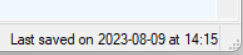
In the right bottom corner of the screen editor the current save status (when the file was last saved) is now displayed. "Modified" means that you've made changes since the last save.
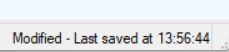
This status is tracked per screen file opened in the Screen editor. When a screen is opened it will initially display the last write date and time of the opened screen file.
Quickly close opened screen files
Right-click the tab of an opened screen file to open a context menu with different Close options. Close (Ctrl+W) closes the current screen file, or select one of the other options to close multiple opened screen files.
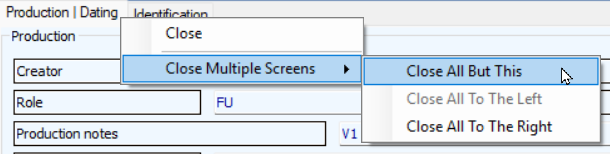
If you try to close a screen that has been modified it will now show a prompt to allow you to save, discard or cancel the close operation.
Changes to the Properties window behaviour
The Properties window is now shown as a separate window in the task bar pop-up for Designer. And if you have a Properties window open in the background, opening the properties for another screen element will bring the Properties window to the front with the new properties.
The new Ctrl+Enter shortcut for a selected screen element will open its properties, while pressing Escape will now close the Properties window.
Other small changes and fixed bugs
-
Several existing menu options can now also be activated via shortcuts which are also displayed in the menu item text.
-
The Delete key can now be used to clear text cells of the language grid view for label properties. Clicking a table cell once before pressing Delete is enough.
-
When you right-click the language grid view for label properties and choose Paste in the pop-up menu to paste copied texts, the new values are now displayed instantly. (Previously you had to close and re-open the Properties window to see the new values.)
-
In the Screen editor, any field conditions for an entry field were not copied along when a field was copied/pasted on a screen. This has now been fixed.
-
Improvements were made to memory clean-up when closing the screen editor.
-
The Screens manager window is now shown as a separate window in the task bar pop-up for Designer.
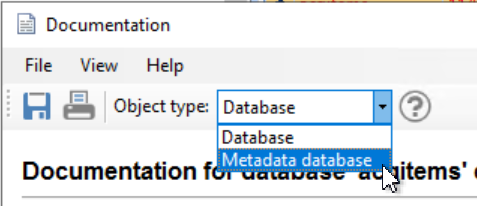
From Designer version 7.18 onwards, the dynamically generated application configuration documentation (via the Create documentation option in the right-click pop-up menu for .infs, the .pbk, screen files and folders containing those files, now also includes settings for full text indexing, indexed links, metadata databases and internal links. If you right-clicked a folder (like the /data folder) and it contains more than one file type, you can open the Object type drop-down to select for which type the documentation must be created. If the drop-down is read-only, you can't select a different object type for the selected node. Although .inf's for normal database tables and .link files for metadata database tables are considered different object types, from the View menu you can select the same document types (although some sections in the documentation for metadata database tables do not apply and will remain empty) and you could create documents for both and combine them later manually if desired.
Full text index settings are now included in the following reports:
-
Database Info - Comparison Mode (XML)
-
Database Info - Sorted On Name (XML)
-
Database Info - Sorted On Tag (XML)
-
Field List With Index Information (CSV)
Internal link settings now include internal link association properties (Association field, Reverse association field, Association, Reverse association), if filled with a setting, and are available in the following reports:
-
Database Info - Comparison Mode (XML)
-
Database Info - Sorted On Name (XML)
-
Database Info - Sorted On Tag (XML)
-
Internal Link List (CSV) [new]
Indexed links settings are included in the following reports:
-
Database Info - Comparison Mode (XML)
-
Database Info - Sorted On Name (XML)
-
Database Info - Sorted On Tag (XML)
-
Linked Field List (CSV)
-
Internal Link List (CSV) [new]
Field group name check added for indexed link meta data reference fields
The assigned field group name of indexed link fields and their meta data reference fields should always be identical, otherwise the meta data reference field data could become corrupted.
Therefore, when setting the field group name for a meta data reference field to anything other than the group name of the indexed link field it is associated with, Designer now will report that immediately behind the Member of group property and prevent saving until you select the proper group name:

New is also that the Member of group property is now a drop-down list, offering only existing group names, although you can still type a new one which will then become part of the list after leaving the field.
The check and a possible automatic fix have also been implemented in the Application tester.
The getcounter ADAPL function has been improved. The new syntax has an optional third and fourth argument:
value = getcounter (<fdname>, '<counter_name>', increment_switch, offset)
-
increment_switch is either 0 (default), 1 or 2 and is meant to allow you to choose between the (default) behaviour where the current counter value stored in the dbo.auto_numbering table in the SQL database is incremented by 1 and retrieved (use 0), and the case where the current value is just retrieved and not incremented (use 1). The existing use of getcounter in adapls (with only the first two arguments) is the same as using getcounter with 0 as the third option, so there’s no need to adjust existing adapls and in new adapls you can also still use the old syntax. Value 2 can only be used with offset (see below).
-
offset can be any positive integer value you’d like to set as sort of an offset for the relevant counter and must be used together with increment_switch value 2. Every time you call getcounter with this option, the counter will be set to the provided integer value (so no automatic incrementation takes place with this call). A possible, although niche, use case is if a field would exist where users can enter a number to use as offset for the counter. The adapl would have to check for a new value in that field and empty it after using it as offset. If you’d only like to assign an initial offset when the counter is first created, it might be easier to just add that number to the result of a getcounter call (see example 2), because with the new way of doing it you would have to have some way to make sure you only use the offset once.
Examples:
-
mynewnovar = getcounter (COLLECT, 'objno') – Increment the currently stored value and copy it to the integer mynewnovar variable
-
myvar = getcounter (COLLECT, 'objno') + 1000 – Increment the currently stored value (by 1, as it always does), retrieve it, add 1000 in memory and copy the total value to the integer myvar variable. So with every call the counter will still increment from 1 to 2 to 3 etc. while the value in myvar wil go from 1001 to 1002 to 2003 etc.
-
newnumber = getcounter (OBJECTS, 'objnumber', 0) - Increment the currently stored value and copy it to newnumber.
-
newno = getcounter (OBJECTS, 'objno', 1) – Retrieve the currently stored value and copy it to newno. No incrementing takes place.
-
new = getcounter (OBJECTS, 'mycounter', 2, 22000) – Set mycounter to 22000 and copy this value to the new variable.
If a counter doesn’t exist yet, it will be created when first called, except when using 1 as the third argument. Without using the fourth argument, the retrieved value of a newly created counter is 1, as is the value stored in the dbo.auto_numbering table after saving the record.
Incremented or set values will only be stored when the currently processed record is saved.
After using a third and possibly fourth argument in a getcounter call, you’ll have to compile it with Designer 7.17.1.8299 or higher, or adapl.exe 7.6.26037.1 or up and execute it with either RunAdapl 7.17.1.8299 or Collections 3.0.0.18429 or higher.